Coworking space
Useful access from arrival.
Guest Wi-Fi and shared rules.
In a coworking space, distinguish the QR for joining guest Wi-Fi from the QR for venue information. Room bookings and building access remain separate services.
Fictional example
Coworking space
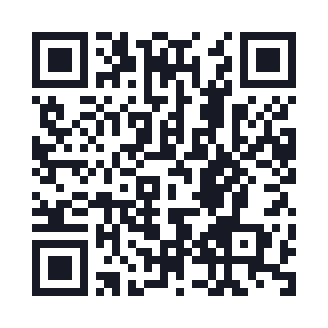
WIFI:S:Qurl-Visiteurs-fictif;T:WPA;P:fiction-123;;Your turn
A well-prepared project.
Use only the designated guest network
Check the network name, security mode and password with its administrator. The Wi-Fi QR contains these details, so display it only where sharing is intended. A sign-in portal requiring confirmation remains a separate step.
Create the guest Wi-Fi QRBring together information for using the space
Publish hours, contact and shared rules on a mobile page. For rooms, link to the existing booking service and explain its access requirements. Keep door codes and internal documents off a page open to everyone.
Create a webpage QR
The final details
Before sharing the display.
A QR code decoded on screen is a first check. Also verify the destination and the material actually used.
- Label displays “Guest Wi-Fi” and “Space information”.
- Keep the reception contact readable for someone who is offline.
- Replace the Wi-Fi QR when credentials change and remove old cards.
Good to know
Before getting started.
Can the QR open a door or book a room?
Qurl shares Wi-Fi details or a link. Opening a door and confirming a booking require the services provided by the venue manager.
Sources
See our checks and their limits.