Professional badge
Keep in touch after the meeting.
A professional contact card on the badge.
On a trade-show or networking badge, a QR can prepare contact saving. Share only details intended for this distribution and keep the name readable.
Fictional example
Professional badge
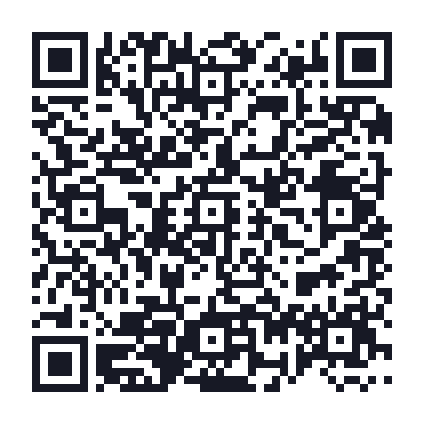
BEGIN:VCARD
VERSION:3.0
N:;;;;
FN:Camille Exemple
ORG:Atelier fictif
EMAIL:camille@example.org
END:VCARDYour turn
A well-prepared project.
Prepare a card limited to useful contact details
Check the name, business and professional contact method before generating the vCard. A card displayed on a badge can be photographed by anyone nearby. Test importing on a phone and remove fields unnecessary for the meeting.
Create the contact QRTest the badge while worn with its covering
Keep the QR away from holes, clips and edges. Retain its clear margin and check scanning through the badge holder with real reflections and orientation. A “Save my contact” caption distinguishes it from a ticket or access code.
Prepare the QR for printing
The final details
Before sharing the display.
A QR code decoded on screen is a first check. Also verify the destination and the material actually used.
- Keep the name and business readable without scanning.
- Keep the contact QR distinct if the organiser uses an individual admission code.
- Replace the QR if the encoded details change.
Good to know
Before getting started.
Does this QR control admission or attendance?
No. This journey shares a contact card. Ticketing, access rights and attendance records require a separate service.
Sources
See our checks and their limits.