The quick method: from PDF to a readable image
- Open the PDF at the page containing the QR code you need.
- Zoom in until the small squares are clear, keeping the complete code and its light margin visible.
- Save a screenshot of that area as PNG, JPEG or WebP.
- Open the QR code reader, select that image and examine the recovered content.
The Qurl reader accepts these three image formats, up to 10 MB, 4,096 pixels per side and 16 million pixels. It does not import PDFs directly. Renaming a .pdf file to .png does not convert it: you need to create an actual image.
Do you instead want to create a QR that opens your brochure? See the guide to sharing a PDF with an accessible link or the page to create a QR linking to a PDF.
On Windows or Mac: capture the code, not the whole page
First display the correct page in your PDF viewer. Avoid thumbnail view: a tiny QR in the middle of a whole page can lose detail when the image is reduced.
On Windows. Use Windows + Shift + S, choose a rectangular snip and frame one QR with its margin. Then open the capture in Snipping Tool and save it as an image. Import that file into the Qurl reader.
On Mac. Use Shift + Command + 4 and select the QR area. Find the file in your chosen screenshot location. If your Mac saves in HEIF, choose an SDR/PNG capture in the available options or export the image to an accepted format.
You can also open the document in Preview, display the required page, then use File > Export and choose PNG. Check that the resulting image contains that page and crop it around the code. For a document with several pages, work page by page.
If you do not have a phone to hand, the guide to read a QR on a computer explains the next steps in the reader.

On iPhone or Android: use a screenshot of the PDF
Open the PDF, go to the relevant page and enlarge the QR without cutting off its corners. Take a screenshot using your phone’s command, then crop it while retaining the whole square and the white space around it. The guide to reading a QR in an image on the same phone then explains how to select the file.
On Android, Google generally suggests Power + Volume down ; other commands exist depending on the manufacturer. On iPhone, use the screenshot combination for your model. Recognition options in a gallery or PDF viewer vary: if no action appears, use the saved image.
The camera can help if the PDF is displayed on another screen. If it recognises nothing, see the checks for iPhone and Android. For a PDF already on the same phone, a screenshot avoids needing a second device.
Try a PDF containing two different QR codes
This fictional document contains two codes, A and B, with their addresses written out. Save the PDF, capture only code A and read that image. Repeat with B. The addresses below are comparison references, not services to visit.
Download the test PDF: two QR codes on one page
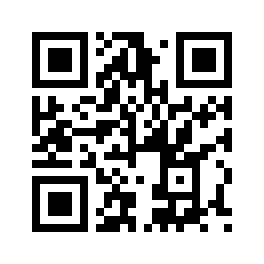
https://example.org/pdf/a
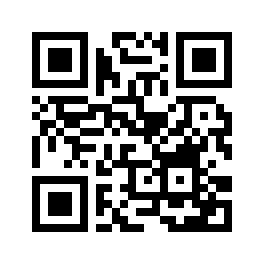
https://example.org/pdf/b
The two PNGs also let you compare your screenshot with the original pattern. If the PNG can be read but your screenshot fails, check the framing, sharpness and visible size in the PDF.
Several QR codes in the PDF: check them one at a time
A brochure may include one code for the programme and another for registration. Importing the whole page and getting a result does not mean all its QR codes have been checked. The Qurl reader is not a multipage document analyser or a code inventory tool.
- Note the page and the QR’s stated purpose.
- Create a separate image for each code, keeping its margin intact.
- Name the files so you can distinguish them, for example
page-02-programme.pngandpage-02-inscription.png. - Compare each recovered payload with the corresponding caption.
If you are preparing the document yourself, maintain this correspondence through to the final file. The guide to checking a QR batch before printing and the practical checklists help organise that review.
The QR is still unreadable: choose the right fix
- The squares stay sharp when you zoom in
- Take a larger screenshot or export an image of the correct page. Keep the QR complete.
- The QR is already blurred in the PDF
- Ask for the original file or a better version. Enlarging a blurred image does not restore lost detail.
- An edge or corner is cut off
- Capture again with the whole light margin. Do not draw new squares to try to repair the code.
A PDF may contain a vector drawing or simply a scanned photograph. The PDF format alone therefore does not guarantee a sharp QR. OCR recognises text; it does not replace decoding the QR pattern.
DENSO WAVE specifies a clear margin of four modules around a standard QR code. When cropping, keep the existing white space rather than fitting the selection tightly against the first squares. Do not repeatedly save a compressed screenshot in the hope of improving it.
For other contrast, pattern or printing defects, use the unreadable QR diagnostic. If opening or capturing the document is restricted, ask its sender for a version or address you are authorised to use.
Once the content is read, check the destination
Compare the recovered address with the service announced in the document. A QR and a clickable link in the same position may lead to different addresses: check the one you intend to use. Recognising the code does not certify the sender’s identity or the page’s safety.
Before opening, examine the domain and link details using the guide to checking where a QR code leads. If the page requires an account, denies access or shows an error, you have passed the reading stage. The a QR code opening the wrong page guide helps you continue.
A temporary destination may also have closed while the QR remains perfectly readable. The News article about Quick Share and transfer links to iPhone illustrates this case. Ask for a new share rather than taking more screenshots of the same code.
Frequently asked questions about QR codes in PDFs
Do you have to print the PDF to scan its QR?
No. A sharp screenshot of the QR can be read as an image on the same device. Pointing another phone at the screen is an option, not a required step.
Can you drop a PDF directly into the Qurl reader?
No. Prepare a PNG, JPEG or WebP. The reader does not convert PDF pages or automatically go through the document’s codes.
Why does the address appear but not the expected document?
The QR’s content has been recognised. Next check the address, access rights and destination availability. Exporting the pattern again does not bring a remote page back online.
Can you read a QR in an invoice or ticket?
It depends on the symbol and the data it contains. Not every square barcode is a standard QR. For a ticket, payment or official check, use the sender’s intended process; recovering text does not validate the document.