Identify the step that is failing
Before changing settings, observe what the phone actually does. These three situations need different fixes:
- No suggestion on screen
- This reader may not have recognised the QR. Check sharpness, framing and the phone’s scanning function.
- A link or action appears
- The code has been recognised. Read the suggestion and choose the appropriate action; it is not necessarily a website.
- The page opens with an error
- The reader has handed over to the browser. Now check the connection, address and access permissions.
A QR can contain a URL, but also text, a contact or Wi-Fi settings. Applications do not all offer the same actions for these contents. The absence of a web page alone therefore does not mean the pattern is unreadable.
If the displayed link looks unusual, use the guide to checking where a QR code leads before opening it. Successful recognition does not certify its destination.
Get the whole QR sharp in the image
Start with the reading conditions. A change of distance or lighting may be enough, without changing the QR or installing an application.
- Keep the whole square and its clear margin in the frame.
- Hold the phone steady and give it time to focus.
- Move the device gently closer or further away until the pattern is sharp, without cutting off the corners.
- Avoid shadows and glare; move if a light obscures part of the code.
- If the lens is smudged, clean it with a soft cloth.
On another screen, display the QR large enough and fully visible. Enlarging a screenshot until it becomes blurry does not recreate missing detail. On glossy paper or behind glass, the guide to managing QR reflections helps you reconsider its position.
No single distance in centimetres suits every phone and QR. Look for a sharp, complete image. If the material is damaged, distorted or poorly printed, move to the file and print diagnosis.

On iPhone: try Camera, then Code Scanner
- Open Apple’s Camera application.
- Select Photo mode and frame the QR.
- Wait for the suggestion, then examine it before following the link.
If recognition does not happen, try Scan Code in Control Center. Apple’s current help says you can add it by touching and holding the Control Center background, then choosing Add a Control and the code scanner.
Labels and presentation may vary with the iOS version. Apple documents the camera and this dedicated control; do not conclude that your iPhone cannot read QR codes simply because an old tutorial shows a setting missing from your screen.
If the QR is in a photo or screenshot on this same iPhone, use the image import below. Pointing the camera at the phone already displaying the code does not solve that situation.
On Android: check your manufacturer’s method
A Pixel’s settings are not those of every Android device. Here are two methods documented by their manufacturers; adapt them to the menus actually present on your model.
Google Pixel. In Camera, open settings, then the additional settings and enable Camera scan suggestions. Frame the whole code and wait for the suggestion. Google says you do not need to take a photo. The QR scan shortcut in Quick Settings is another option; it can be added if the button is not visible.
Samsung Galaxy. In Camera, use Photo mode. If nothing is recognised, open that application’s settings and check the QR code scanning option. Samsung also documents a Quick Settings shortcut. Availability and labels depend on the device and its software.
For another brand, consult its help for the camera application or supplied QR scanner. A generic “Android” procedure can send you to a menu that does not exist on your phone. If the camera stays blurry even for ordinary photos, the problem may go beyond QR reading.
If the QR is already on the same phone
Save the received image or screenshot, then open the QR reader and select that file. Keep one code clearly visible, with all four corners and its margin. The reader accepts PNG, JPEG and WebP images; a PDF document must first provide a usable image.
This method examines the file’s pixels. It can help distinguish a camera capture problem from a problem already in the image, but it does not guarantee that a print or camera will read the same code.
The guide to reading a QR code in an image on your phone explains choosing the file. If the document is on a computer, use the method for reading a QR without a phone.
Try an example with known content
This fictional PNG contains the address displayed beneath the pattern. Save it, then import it into the reader to compare the result. The address is a reading reference, not a real help page.
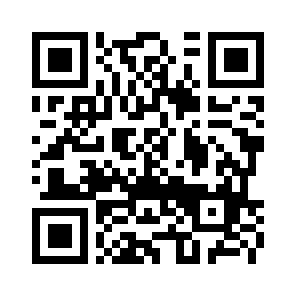
https://example.org/verification
On the same phone, import the saved file. To try framing with the camera, display it on another screen. Compare both situations without assuming that a result from the file proves your printed material can be read.
If this example reads but your QR does not, examine what differs: material, visible size, glare, original image or supported content. If no QR is recognised by the camera but files can be read, return to the phone’s method. That observation guides the search; it is not enough to diagnose a hardware fault.
If the link is recognised but does not work
Once the address is displayed, check access to the destination separately. Does the phone have a usable connection? Does the page require an account? Is the link still available? The guide to checking a wrong destination helps compare the encoded address with the page reached.
A page error does not prove the QR has expired. An address may have moved or a temporary transfer may have ended. The News article about Quick Share and its temporary QR for iPhone illustrates the latter case; the QR code lifespan guide explains other dependencies.
If the phone suggests joining a network rather than opening a page, follow the guide to troubleshooting a Wi-Fi QR. If scanning remains impossible, ask for a readable address or another way to access the service: the alternatives to scanning and the practical resources help prepare that fallback on your own materials.
Frequently asked questions about QR detection
Do you need to install an application to read a QR?
The iPhone, Pixel and Galaxy devices covered by the cited documentation have built-in methods. Check those for your model first. A function may differ with the phone, its software and the content type.
Does the camera need Internet to recognise the code?
Recovering the image data and opening a page are separate steps. Reader availability depends on the device or application; accessing a site then requires a connection. Do not confuse a network error with a lack of detection.
Why does the same QR work on another phone?
Framing, focus, reader and supported actions may differ. Try a sharp, complete image in both situations, then compare the displayed suggestion rather than just the page opened.
The reader recovers the address: is my print correct?
That confirms the content of the image read. For printing, still check size, margin and actual conditions with the guide to printing a QR code at the right size.