Start where people will actually be able to scan
The useful distance is not where someone first notices the poster. It is the distance between the phone and the QR when it is read. A sign behind a window, above a counter or across a walkway does not necessarily let people come closer.
- People can approach freely
- Provide somewhere to stop and a QR at a comfortable height. Try it from the positions people will actually use.
- An obstacle forces people to stand back
- Measure the accessible distance, then compare larger versions without relying on phone zoom.
- People remain in motion
- Also provide access somewhere they can stop. A readable address or another information point may be more useful.
Record the conditions before designing: usual distance and greatest expected distance, access, height, angle and lighting. No single size guarantees the same range on every phone. DENSO WAVE notes that reading capabilities depend in particular on the camera and reader.
Choose a visible, clear area that is easy to frame
Place the QR near the action it announces, on a flat, well-lit part of the poster. Avoid the corners of the surface, frame edges, areas hidden by a door and places where people need to bend down or raise the phone sharply.
Look at the surface from the reading point, not just straight on at your screen. Glare may cross the code at certain times; a high-mounted sign can impose an awkward angle. For glass or a glossy finish, also use the guide to handling glare and glossy materials.
A QR visible from a road is not an invitation to scan while driving. Provide access for people who have stopped, and do not ask them to stand in traffic or block the walkway. If approaching is impossible, add an accessible information point with an alternative to scanning.

Size the whole QR, including its quiet zone
A QR is a grid of modules, the small squares forming the pattern. At the same width, a denser grid has smaller modules. Distance, file sharpness and phone capability therefore matter as much as the square’s overall side length. The guide to why a QR becomes denser explains this difference.
For a standard QR, preserve a clear margin of four modules on every side, as specified by DENSO WAVE. When giving the printer a dimension, state whether it includes that margin. The test files below specify the total side length, including the white area.
Suggested ratios such as “distance divided by ten” are not a guarantee. An A3 or A1 poster does not, on its own, determine the right QR size either. Reserve enough room to compare dimensions in your actual situation; do not start from a universal minimum in centimetres.
Keep a dark pattern on a plain light background. Avoid adding a logo during a size comparison: you would change two variables at once. The guides to colours and background guide and printing a QR code at the right size explain these choices further.
Prepare the poster’s final file
To enlarge a QR in a layout, use a vector SVG and preserve its proportions and quiet zone. In your page layout software, explicitly set its width and height. Enlarging a small PNG adds no detail; an SVG can also degrade if the software later converts it to an image that is too small.
The Qurl print helper shows the grid, margin and PDF side length for its three module sizes: 0.4, 0.6 and 0.8 mm. This setting is not a reading-range calculator and does not freely offer large-format QR dimensions. For your poster, place the SVG at the required size in the layout and check the final PDF.
Check the actual file sent to the printer, including after a reduction or conversion. The guide to reading a QR inside a PDF lets you check its data. Reading the file does not replace a printed proof at the correct size. To choose the starting file, see PNG, SVG or PDF.
Compare the same QR at 50, 80 and 120 mm
These three SVGs contain the same fictional address and pattern. Only their physical size changes: 50, 80 or 120 mm per side, including the quiet zone. They are variants to try, not sizes validated for a given distance. The preview on this page is not actual size.
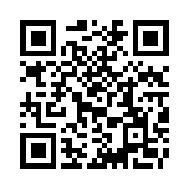
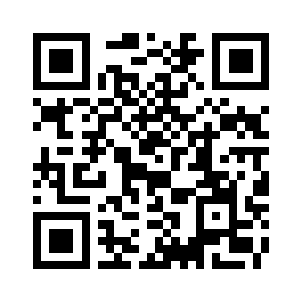
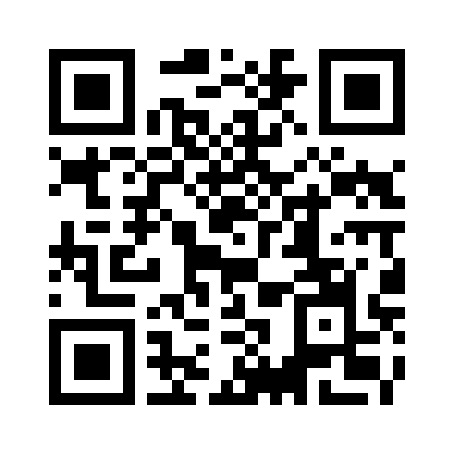
Import a variant into your layout, check its dimensions, then prepare a proof without automatic scaling. Measure the white square on the paper output. Then compare from the same point, with the same phone and light; change only the size first.
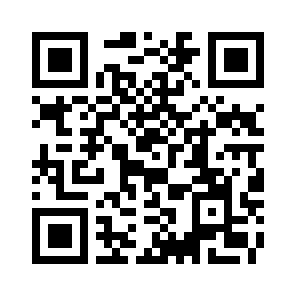
https://example.org/affiche
The address is for checking the decoded content; it is not a real programme or registration page. For your project, replace it with your actual destination and repeat the trials with the resulting QR.
Try it at the planned distance and on the intended surface
Put the proof in the selected position, or reproduce its height, background and finish as closely as possible. A test on a screen next to you does not evaluate a poster behind glass or several steps away from the walkway.
- Identify and measure the usual reading point, then any additional distance you consider necessary.
- Frame the whole code without digital zoom and observe whether an action is offered.
- Repeat with several available phones and relevant lighting, including sunshine, shade or evening light where applicable.
- Compare sizes while keeping the other conditions stable. Note successes, failures and situations requiring a closer position.
- After changing material, position, content or file, check the final version again.
Download the A4 field trial sheet. It records the device, distance, light, reading and destination access. Fill it in with your observations; the example dimensions do not predict your trial’s outcome.
If it will not read, work back towards the cause: is the QR complete, sharp, sufficiently contrasted and free of glare? The guide to diagnosing an unreadable QR code helps separate the file, print and capture conditions.
State the action and keep the destination usable
Give people a reason to take out their phone: “View the programme”, “Book a place” or “Check opening times”. The promise must match the resulting page. The guide to captions below a QR offers suitable wording.
Add a readable address and another relevant route for people who cannot scan. For a visitor trail, also consider where people actually stop: the News article on QR codes in heritage trails shows location-based uses, without providing a size transferable to your poster.
Open your actual page from a phone signed out of your account. Check the mobile content, access rights and availability throughout the display period. Choose an address you can maintain: changing a page’s content and changing its URL are different things. The guide to keeping access to your company’s QR codes helps organise continuity.
Before printing, keep the approved layout, dimensions, QR file and agreed conditions. Use the process for checking QR codes before printing and the practical resources to pass these details to the printer.
Frequently asked questions about poster QR codes
What QR size should you choose for an A3 or A1 poster?
The poster format is not enough. Start with where people can stop, the distance, the QR grid and the finish. Compare variants on a proof at the intended dimensions.
Does a QR twice as large read from twice as far away?
That is not guaranteed. Enlarging it can help framing and distinguishing modules, but devices, focus, angle and light still matter. Record what you observe in your conditions.
Can phone zoom compensate for a QR that is too small?
Do not base the layout on that possibility. Zoom functions and results vary. First prepare straightforward reading from the accessible point; if it remains impractical, change the size, position or access offered.
Is a QR readable in the PDF enough to approve the poster?
No. That checks the content of the image being read. You still need to check the printed dimensions, material, installation, reading conditions and access to the expected page.