Say what opens, in a few words
Start with the destination, then write the instruction. If it is a menu, name the menu. If the QR opens a request form, describe a request: reading the code alone does not reserve a table or a place.
- An unclear instruction
- “Scan me” leaves people to guess the destination.
- A specific instruction
- “View the menu” says what the page should display.
A verb and a specific object are often enough: view the programme, open the instructions, prepare a message. Keep any conditions needed to understand the action, even if they add a few words. A promise of a free service, discount or availability must match a real offer.
No single word count suits every material. Aim for a sentence understood at a glance, without obscure abbreviations or invented benefits. A clear caption helps explain the purpose; it does not prove that the QR or its domain is safe. The guide to checking where a QR code leads explains that check.

Six phrases to adapt to your purpose
These suggestions are starting points. Choose the one that describes your actual journey, then replace general terms with the document, service or event name.
- Menu
- “View the menu” suits a link that opens the food menu directly. “Order” would require an actual ordering journey.
- Instructions or document
- “Open the assembly instructions” identifies the expected document. Mention PDF if knowing the format before opening is useful.
- Registration
- “Open the registration form” describes a step to complete, not a registration already confirmed.
- Contact
- “View my contact details” suits a contact card. Saving them then depends on the application and the person’s choice.
- “Prepare a WhatsApp message” suits a link opening a conversation with prefilled text. The message still needs to be sent.
- Event
- “View the day’s programme” suits a programme page. “Add to your calendar” requires a journey that actually offers it.
To check the steps behind these instructions, see sharing the right form link and preparing a WhatsApp QR. The caption and the first screen should describe the same action.
Put the text near the QR, outside its quiet zone
Place the instruction above or below, close enough to show which code it belongs to. If several QR codes share one material, each text must identify its own content. Avoid a shared sentence that leaves people unsure which is the menu, Wi-Fi or reviews.
Keep the clear area around the QR: for a conventional QR, it is at least four modules wide on each side. Text, arrows and frames must not enter this quiet zone. The caption belongs to the layout; it must not replace part of the pattern.
Choose contrasting text and a readable size on the actual material. If the sentence does not fit, shorten it or revise the layout rather than shrinking everything. The guide to placing a QR code on a card or flyer provides layout guidance; the colours and backgrounds guide covers QR contrast.
Add a caption to the Qurl PDF
Use the size and printing tool to enter your address, then fill in PDF caption (optional). For a fictional menu, try these two lines:
View the menu
example.org/menu
The caption is limited to 120 characters and four rendered lines. Line breaks affect the layout; long text may also wrap automatically. If the tool reports an overflow, simplify the wording and reread the preview before downloading.
This caption is added below the QR in the PDF. It does not change the encoded data and is not added to PNG or SVG exports. For a layout using those formats, place the text in your layout software. The guide to choosing PNG, SVG or PDF helps you pick the right file.
PDF text does not turn an address into a different QR link. Changing the phrase or the address printed under the pattern therefore does not fix an incorrect URL in the code.
Compare the caption with the QR data
This fictional PNG contains only the address below. Save it, then import it into the QR reader to compare the result. It does not provide access to a real menu.
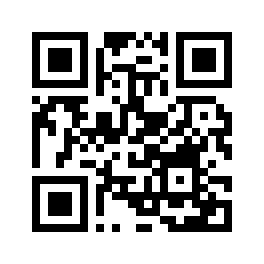
https://example.org/menu
If you use this example in the printing tool, enter the same URL and the caption suggested above. The reader should recover https://example.org/menu, not the phrase “View the menu”. An address correctly displayed beneath a QR is not enough: it must match the pattern’s data.
For your own material, check the destination separately afterwards. Is the menu visible? Is the form open to the right people? Is sign-in required? The guide to correcting a wrong destination helps distinguish an incorrect link from an access problem.
Provide access without scanning
On paper, a short, readable address can offer another way to reach the content. It must actually lead to the same useful service: do not print only the domain name if the menu is still impossible to find from the homepage.
On a web page, in an email or in a PDF intended for screen reading, add a real link with a clear label, such as “View the menu”. Readers can then activate it on the same device. Text drawn beneath an image does not automatically become a clickable link.
A visible caption is not the technical text alternative for an image either. If you publish the QR online, choose that alternative according to its function and the links already present. The guide to providing an alternative to scanning covers these situations and options without a smartphone.
For a multilingual audience, adapt the instruction and destination together. A Dutch invitation leading to a French-only page may need clarification. Keep the same encoded address if it is the intended destination; translating the caption does not translate the QR’s content.
Reread the promise on the final material
- Read only the instruction: is it clear what will be offered?
- Decode the QR and compare its address with your reference and the printed address.
- Open the destination deliberately and follow the journey under the intended audience’s conditions.
- Reread the final file: no cut-off text, complete QR, clear quiet zone and correct association.
- Try printing at actual size, then check again after a change to the page or material.
Reading a file confirms the data in that image, not the readability of every print. The guide to printing a QR code at the right size and the practical resources help you prepare this trial.
In a shop, the stated action must also remain distinct from a checkout transaction. The News article on retail QR codes and GS1 explains the difference. If you compare phrases, define the result you observe with the guide to scans, openings and visits ; changing a sentence alone does not prove a performance gain.
Frequently asked questions about QR captions
Should every QR say “Scan me” underneath?
No. Name what people will find instead: the menu, instructions or programme. You can add a scanning instruction if the context needs it, without hiding the purpose.
Can the caption change the QR’s destination?
No. It accompanies the pattern. To change encoded data, create a suitable QR; a page can also change at the same address. The guide to changing an already printed QR code explains the possible cases.
Why does my caption not appear in the PNG?
The Qurl field applies to the PDF. PNG and SVG exports contain the QR; add their accompanying text in your layout.
Is a readable address enough as an alternative?
It can help on paper if it is usable and leads to the right content. On screen, provide a real link. Depending on the service and audience, also provide access without a smartphone.