Choose between customer information and checkout identification
Start with the intended action: read instructions, watch a demonstration or find care advice. For this purpose, a QR can open an existing page. A specific prompt, such as “View the instructions”, helps people understand what they will find.
A QR intended for identification at checkout belongs to a different project. GS1 Digital Link connects GS1 identifiers, including the GTIN of a trade item, to online information. Its use also depends on the data, print quality and partners’ systems. A successful phone scan does not validate checkout processing.
Qurl generates static link QR codes; it does not supply GTINs, validate GS1 syntax or certify packaging. If your project involves retail distribution, have the relevant partners confirm the content and placement before changing existing codes. The News article on GS1 2027 and packaging QR codes explains this distinction.
Find the available area on the closed pack
Examine an assembled, filled and closed sample, rather than just the flat artwork. The QR and its quiet zone must remain visible together, without being hidden under a flap or split across an edge. GS1 guidance includes avoiding folds, joints, seams and perforations in the barcode area.
- Box or carton
- Reserve a flat face, away from creases, flaps and sealing tape. Also check where a shipping label will be applied.
- Bottle, jar or tube
- Check that both QR edges remain in the same field of view. Avoid label overlaps and curves that hide part of the square.
- Bag or pouch
- Observe its shape once filled. Keep the QR away from seals, gussets and areas that crumple when the product is held.
On a cylinder, enlarging the code can also make it wrap further around the curve. Do not therefore respond to every failure by increasing its size. First compare another position or a suitable label. Rotating a square QR does not remove curvature; advice on the orientation of EAN bars does not transfer directly to its grid.
Keep access to the code natural, without requiring the product to be opened or its caption covered by fingers. A photo of the chosen position can accompany your checks before printing.

Preserve the background, contrast and finish
Choose a dark pattern on a light, plain and sufficiently opaque background. On transparent film, whatever is behind it becomes part of the background: the QR’s appearance may change with the product or fill level. Ask the printer to confirm the background needed for your chosen material.
Varnish, glossy film or a metallic surface can produce glare that hides modules. A pronounced texture or poorly applied label can distort details. Compare the actual intended finish, including any protection; a test on white paper does not represent these conditions.
Keep a clear four-module quiet zone on all four sides of a standard QR. Text, decoration, a label edge and an overlap must not cover it. The guides to colours and background guide and reflections and glossy materials explain these choices further.
Error correction adds redundancy to the data; it does not guarantee that a folded code or one obscured by glare can be read. A higher level may also increase the grid size. Address geometry and finish before relying on this correction.
Give the final file an explicit dimension
Place a vector SVG in your layout, keep its proportions and specify the total width including the quiet zone. Do not shrink the white area to save space. A small available area may call for a different position rather than an ever smaller QR.
The right size depends on the encoded content, modules, printing process and material. There is no minimum in centimetres that alone validates a box, bottle and pouch. Ask the printer to confirm what the process can reproduce at your chosen size. The guide to printing a QR code at the right size explains the grid and quiet-zone calculation.
Then check the PDF actually supplied, after any conversions or reductions. The procedure for reading a QR in a PDF checks its content; it measures neither ink behaviour, application nor the finished product’s curvature. To choose the starting file, see PNG, SVG or PDF.
Try a reference QR in your layout
This QR contains a fictional product-page address. The PNG lets you check the data with the Qurl image reader. The SVG contains the same pattern with a declared total side of 30 mm, quiet zone included. This dimension is a file example, not a minimum size or a validated packaging result.
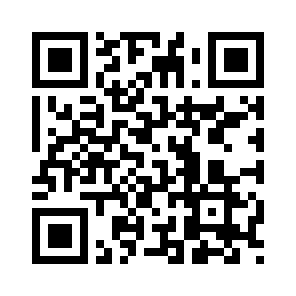
https://example.org/produit
Download the 30 mm reference SVG. Check its dimension in your layout software, then measure the paper output without automatic scaling. The preview on this page is not actual size.
The reference does not represent a commercial product and contains no GS1 identifier. For your project, replace the address with the real destination, regenerate the QR and repeat the checks with that final file. Another link may produce a different grid.
Compare the file, proof and packed product
Organise the check in three states. This helps locate a loss of quality instead of changing size, colour and material simultaneously.
- Final file: decode the QR and compare the address with the approved reference.
- Flat proof: check the dimension and quiet zone on the intended material and finish, before application or assembly where possible.
- Packed product: repeat the same check once the packaging is filled, closed and labelled, in the positions in which people will handle it.
With several available phones, note the position, lighting, distance and whether the expected action appears. Add situations relevant to your product: glare under shop lighting, film added after printing, condensation or foreseeable creasing. These are conditions to try, not established results.
Download the A4 field trial sheet. Attach the file version and a photo of its application. Repeat the check after changing the material, finish, supplier or QR content.
If the file reads but the closed product fails, first look for what changed: a fold, hidden edge, glare, transparency or distortion. If the file already fails, start with the guide to diagnosing an unreadable QR code. Reading with a phone does not replace the quality checks required for GS1 use.
The other practical resources bring together the checking materials.
Keep the information available after the sale
The packaging may remain with the customer after a campaign ends. Prefer a page you can maintain, linked to the right product reference and readable on a phone. Check access without your account and give a prompt matching the result: instructions, advice or a demonstration.
With a static QR, you can update a page’s content while keeping its address. If the URL changes, you need to maintain the old destination or a redirect under your control. The guides to static and dynamic QR codes and keeping access to your company’s QR codes help plan continuity.
Add a readable address and another way to access information that suits the product. The caption under the QR explains the action; an alternative to scanning helps people find information another way. To prepare the linked page, also explore QR use cases and the printer page.
Frequently asked questions about packaging QR codes
Can you put a QR code on a bottle?
Yes, provided you plan its position and try it on the labelled bottle. The entire code and quiet zone must remain visible without disappearing around the curve. No single size suits every diameter.
Should you always choose maximum error correction?
No. It does not correct every distortion and can make the QR denser. First preserve the quiet zone, contrast, sharpness and a suitable reading area; then compare the final file in the intended conditions.
Why does my QR work flat but not on the pouch?
Filling, seals, folds, contents visible through the material or the finish can change its appearance. Compare the proof and filled pouch while keeping the same file and phone.
Can a Qurl QR replace the product barcode?
A link QR does not validate identification at checkout. A GS1 project needs the identifiers, syntax, quality and checks appropriate to the partners involved. Qurl does not certify these elements.