From scanning to sending: three separate steps
A business card says “Email us for a quote”. A QR code can save someone from copying the address and provide a useful subject, but they still need to open their mail service, review their request and decide to send it.
The mailto: scheme identifies an address and can suggest a subject and message body. RFC 6068 separates this preparation from sending: the user can edit the message or choose not to send it.
- Reading the QR: the reader retrieves the encoded data.
- Opening the draft: the device hands the link to a mail service that can handle it.
- Sending: the person checks their account, adapts the text and confirms in that application.
The email QR code generator brings the three fields together. To save details in an address book rather than prepare an email, see import a contact from a QR.
Prepare an address and a request that are easy to review
Use an address that the message recipient actually checks. Review the part before the @ sign, the domain and any copying mistakes. The form expects a single address, without a display name or the mailto:prefix. An accepted format does not establish that the mailbox exists or receives messages.
Choose a subject that provides context: a price enquiry, a question about a workshop or a product reference. Avoid a subject that promises an already confirmed booking or an immediate reply if your organisation does not offer that service.
The message can be a single sentence for the person to complete. Do not prefill their identity, order or confidential information in a public QR code. Anyone who obtains the file can also read its contents.
If you need several structured answers, selectable options or a registration period, a QR code linking to a form may be more suitable. For details to save, the contact QR code page serves a different purpose.

Compare a recipient alone with a prepared message
The two PNGs below use the same fictional address. The first leaves the subject and message empty. The second prepares a subject with accents and an ampersand, plus a sentence containing a plus sign. The data remains identical in all three language editions of this guide.
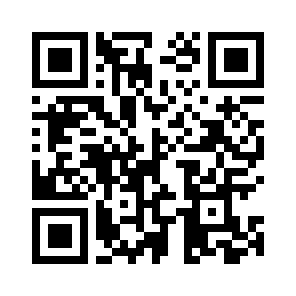
mailto:atelier@example.org?subject=&body=
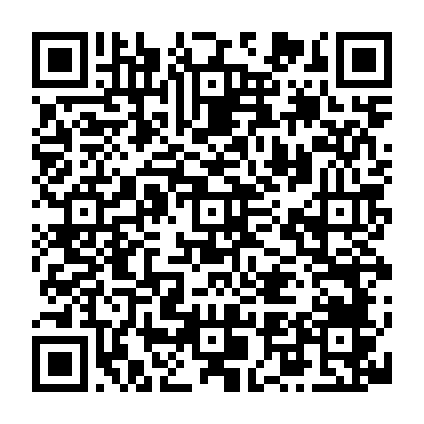
mailto:atelier@example.org?subject=Devis%20caf%C3%A9%20%26%20th%C3%A9&body=Bonjour%2C%20je%20souhaite%20le%20tarif%20A%2BB.
In the second example, the expected subject is Devis café & thé and the expected message is Bonjour, je souhaite le tarif A+B. The PNG measures 424 × 424 pixels, compared with 296 × 296 for the first. These dimensions describe the files, not a minimum print size.
Save an image and import it into the Qurl reader. Compare the displayed data without opening the link. atelier@example.org is a fictional reference address: do not try to send it a message.
Keep accents, “&” and “+” in the right places
Type the subject and message normally into the Qurl fields. Do not replace spaces or accents with codes yourself. Qurl encodes these fields during creation; entering text that is already encoded can leave percent signs in the draft.
In the example QR data, %20 represents a space, %26 an ampersand and %2B the plus sign in the message. The characters shown in the draft must match your text. MDN explains encoding within an address component.
Keep the text short and easy to complete. Qurl limits the serialised content to 1,200 bytes, rather than 1,200 message characters. The address and encoded fields also use this space; some characters take more room after encoding. The guide to why a QR becomes denser explains the effect on the grid.
If a long explanation is needed, put it on a contact page and give the visitor a short opening sentence. Do not expand the message to replace an entire questionnaire.
Check the file, then the proposed draft
- In the Email generator, review the recipient, subject and message separately.
- Export the QR code and select that image in the reader to examine its exact contents.
- On a device representative of your audience, then scan the material or the image shown on another screen.
- Examine the proposed application and the account that will write the email. Compare all three fields before continuing.
- Check accents and special characters in the draft, then close this trial if you do not want to send anything.
To check actual receipt, separately arrange an agreed test message with the person responsible for the mailbox, using a real authorised address. That check concerns the mail service; a decoded QR file establishes neither delivery nor the absence of filtering.
A successful result in one application does not cover all the others. If a mail app or reader does not carry over the fields as expected, simplify the text and keep a readable address on the material. The verification sheets let you record the device, application and result.
Find the step that fails
- Nothing is recognised
- First check the image, margin and framing. No mail setting can repair a blurred or cropped QR code.
- The contents are read but no draft appears
- Check that a mail application or service is available and associated with email links on this device. You can also copy the address into your usual mail service.
- The draft contains the wrong text
- Compare the QR code actually distributed with the intended version, then compare the encoded data with the fields carried over. An old image or different handling by the client may explain the discrepancy.
An empty or truncated message, or unexpected characters, calls for a trial with a simple subject and a short sentence. Check the fields in the generator before changing readers. If the address is wrong in the data, regenerate the QR code; changing mail apps will not correct that typo.
If the draft is correct but the message does not arrive after you deliberately send it, check the receiving mailbox, any error messages and your service rules. The problem occurs after the QR reading step.
For image issues, see QR code not detected on a phone and unreadable QR diagnostic . The News article about QR codes in messaging services also explains why you should review the proposed action before confirming it.
Give a clear instruction and prepare for changes
A caption such as “Email us for prices” describes the result better than “Scan me”. Also display the email address so that someone can copy it or use their webmail. On a web page, provide a directly usable link and the address as text; going through a QR image is not always helpful.
Keep the text outside the code’s margin. For a card or flyer, the guides to choosing a caption and composing printed material help bring the instruction, address and code together.
In a static QR code, the address, subject and message are fixed. If they change, create a new file and replace the affected copies. If you need frequent changes to the workflow, a stable contact page you control can serve as an entry point; it requires web access. The guide to changing an already printed QR code explains this difference.
After an update, also check the caption and address written alongside it. The material and QR code must still describe the same request. See the association and club page for organising a contact point within an activity.
Frequently asked questions about email QR codes
Does scanning automatically send the email?
No. This workflow suggests a message to prepare in a mail service. The person still needs to review and confirm sending; Qurl sends no email on their behalf.
Can I attach a PDF inside the email QR code?
The Qurl form does not attach a file. The person can add an attachment in their application after opening the draft. To provide access to a document, see sharing a PDF with an accessible link.
Why does the QR code open a different mail application?
The proposed application depends on the device and reader configuration. Check email link associations and the selected account. The QR code cannot impose your preferred application on every visitor.
Can I count emails from the number of scans?
A reading, an opened draft and a received message are different events. A recognisable subject helps your organisation but does not provide a reliable scan count. The guide to scans, openings and visits explains measurement limits.